 FreeToolBox
freetoolbox.tech
Blog/remove-background-from-photo
Remove Background From Photo — Free, in Your Browser
freetoolbox.tech/remove-background-from-photo/Any photo with a messy background can look like it was taken on purpose. Remove the background in your browser, drop in one clean colour or keep it transparent, and the same photo is suddenly ready for a profile, a listing, or a thumbnail. Here's how — plus the sizing tricks for each platform, and what to do with the cutout after.
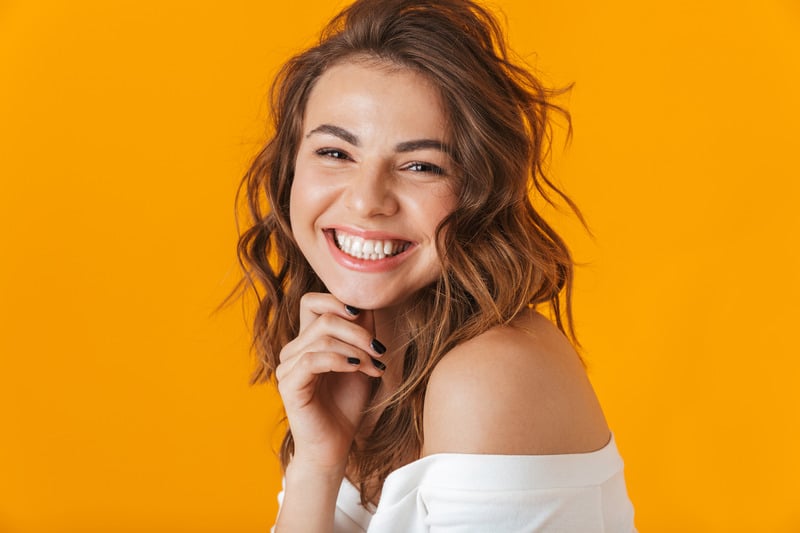
Why a clean background makes any photo better
A busy background competes with the subject — a face, a product, a pet. Take it away and the subject is the only thing in the frame. A plain-colour background reads as deliberate and professional, and it hides whatever was behind you: no messy room, crowd, or street details leak from the background. Profile pictures gain the most — they are seen tiny, in comments, chats and search results — but the same cutout works for product photos, thumbnails and stickers.
Step by step
- Pick a photo that's bright and sharp, with the subject clearly lit. Original file, not a screenshot.
- Add it to the tool at the top of this page and let the AI cut the subject out. Edges are the hard part — hair and fur especially — if the full-quality model offers a re-run, take it.
- Choose a background in the panel: a ready swatch (Sky, Mint, Sand, Pop) or any colour with the custom picker — your brand colour is the professional choice.
- Download the PNG — transparent, or on the colour you picked. Then crop or resize it for wherever it's going; most platforms shrink copies themselves, and a bigger source always survives shrinking better.
Choosing the new background colour
- Job hunting or LinkedIn: a calm solid — light blue, soft grey-green, warm sand.
- Business WhatsApp or store profiles: your brand colour, the same one your logo uses (make that logo transparent while you're here).
- Creator profiles: bold and contrasting — a bright colour that makes the thumbnail pop in a feed.
Sizing for LinkedIn, WhatsApp & YouTube
For profile pictures, all three display small and mostly round, so the rules are the same everywhere: square image, face in the centre, margin on all sides so the circular crop never clips your chin or hair. Export at the full resolution the tool gives you — platforms shrink copies themselves, and a bigger source always survives shrinking better. If the edges around your hair look rough at 100% zoom, run through the edge-fixing guide before blaming the photo.
Bonus: thumbnails and stickers from the same cutout
YouTube-style thumbnails use the same cutout: you, with a bold expression, on a bright background with big text — it works because the cutout separates the face from the noise. And a transparent version of the cutout (download it with the background on “None” before adding colour) is exactly what WhatsApp and Telegram sticker tools ask for. One photo, three assets. The general method behind all of this is in how to make a transparent PNG.
Questions
Will people know the background was changed?
On a clean, well-lit photo, no — a solid-colour portrait looks like a studio backdrop. Busy hair against a busy original background is the one case that can show; shoot against a plain wall when you can.
Is my photo uploaded anywhere?
No. The cutout is made in your browser, on your device — a real consideration for personal photos.
What if I want to keep the background transparent?
Download with the background set to “None”. That's the version design tools, sticker makers and thumbnail editors want.
Give any photo the studio treatment.
Open the Background Remover